|
1
|
- CS248 Help Session #1
- Gaurav Garg
- Stanford University
- October 5, 2005
- Original slides by Georg Petschnigg
- Modified by: Sean Walker, Rene Patnode
- Gaurav Garg
|
|
2
|
- Getting Started
- Assignment Discussion
- Overpainting Brush
- Tinting Brush
- Brush Visualization
- Grading Details
- Extra Credit
- Questions
|
|
3
|
- Read assignment carefully and pay attention to the details
- Go to help session
- Familiarize yourself with Graphics Cluster (2nd Floor) in
Sweet Hall
- Lookout for Myths/Raptors/Firebirds (Myths are latest and greatest)
|
|
4
|
- Sweet Hall
- Work from home
- Reproduce Sweet Hall Lab development environment on you own Machine
- Your code still has to work on the Sweet Hall machines (more risk for
you)
|
|
5
|
- Pick a free computer, Log on
- Copy assignment from /usr/class/cs248/assignments/assignment1/
to local directory
- Run ‘make’
- Run ‘./paint.i386-linux’
|
|
6
|
- ssh to firebird, raptor or leland (make sure
- X-tunneling is enabled)
- Detailed instructions on following page: http://graphics.stanford.edu/courses/cs248-05/remote.html
|
|
7
|
- You are going to write a paint program
- Teaches you 2D Raster Graphics
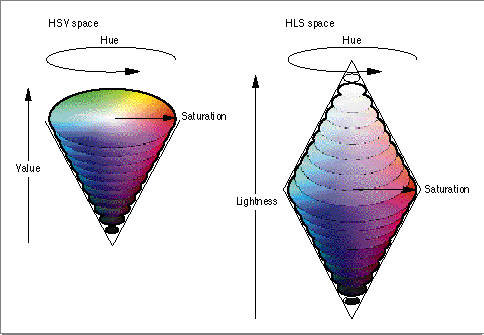
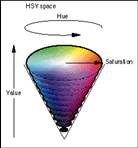
- Visualize concepts learned in Class (Brushes, HSV)
- Be creative with extra credit
- The next slides follow the Assignment (Handout #3) step by step
- Reminder: Read the assignment
|
|
8
|
|
|
9
|
- Rectangular Overpainting Brush
- Like Microsoft Paint or “Pencil Tool” in PhotoShop
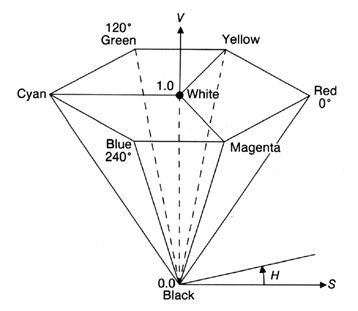
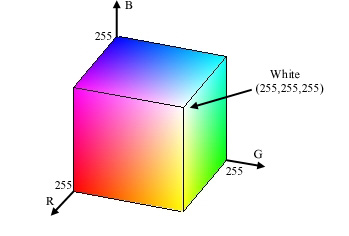
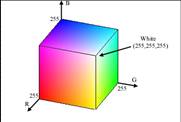
- Color Picker for RGB, HSV
- See http://java.sun.com/docs/books/tutorial/uiswing/
components/colorchooser.html or any
- commercial paint program
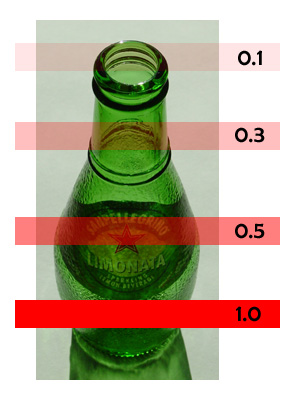
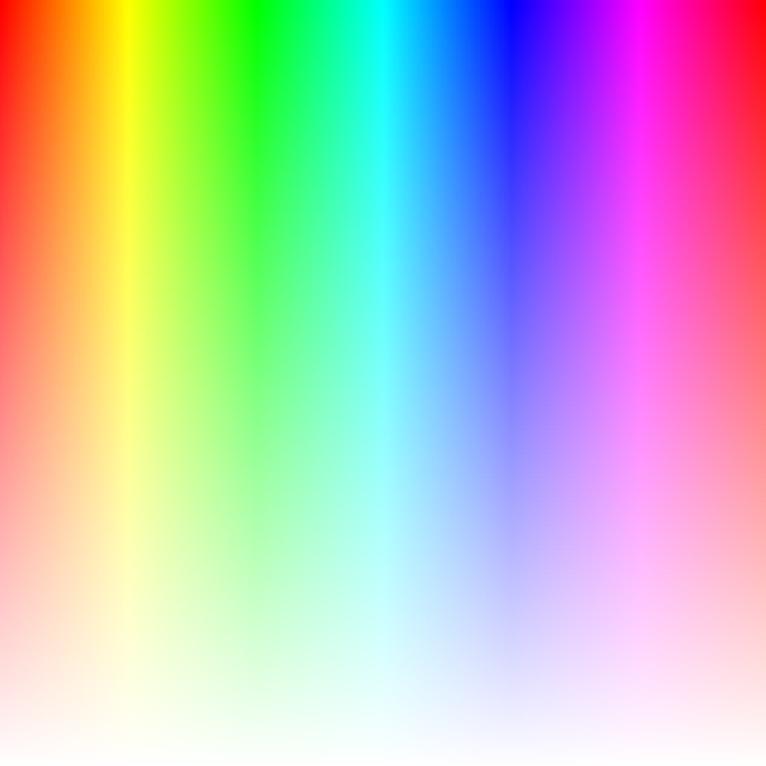
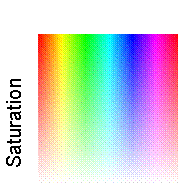
- Value (1.0 bright, 0.0 black)
- Saturation
(1.0 strong hue, 0.0
faded hue)
- Size Control for Brush
Demo: Painting, Picking Colors in Photoshop
|
|
10
|
|
|
11
|
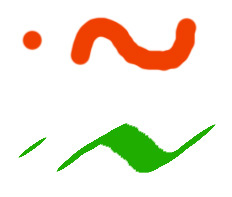
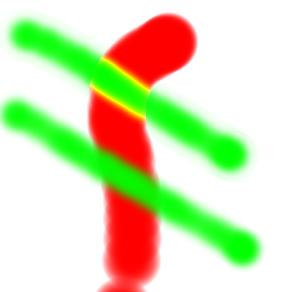
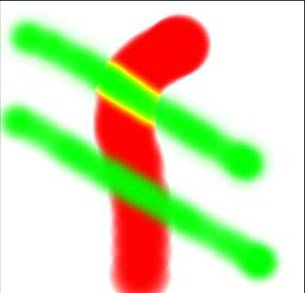
- Once you are done with Part 1 you should be able to draw some basic
images
- Notice the hard edges and jaggies around the stroke… this is what Part 2
will fix
|
|
12
|
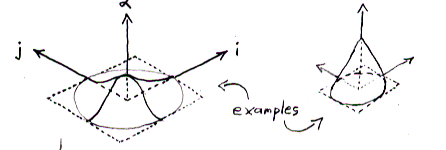
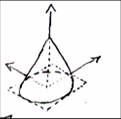
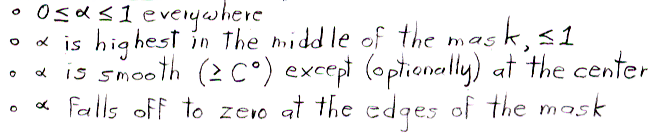
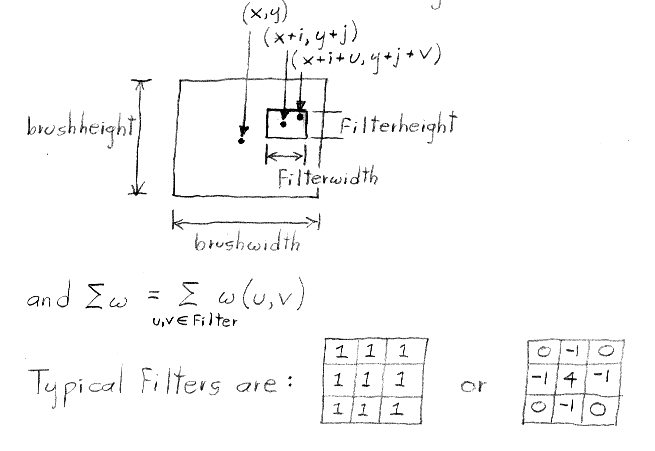
- Implement Weighted Mask Driven Brush as described in Handout #4
- Instead of a rectangular brush, have it gently “blend” to its
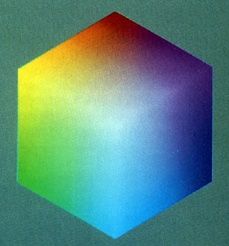
surroundings. Use HSV interpolation
- Checkboxes for interpolating along H,S,V axis
- Allow all permutations HSV, HS, HV, SV, H, S, V
- Choose a mask function and give user control over it
- Make sure it gradually falls off to zero at edges!
|
|
13
|
- Like painting with partially transparent paint. Commonly referred to as
“alpha” blending.
|
|
14
|
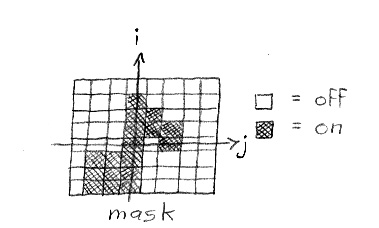
- Lookup array determines how each pixel in the brush is affected.
|
|
15
|
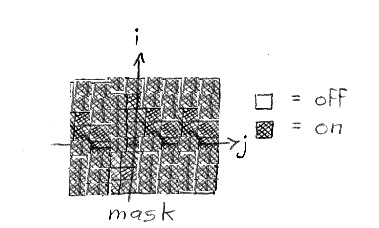
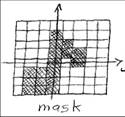
- Mask contains alpha/weight for each pixel in brush
|
|
16
|
|
|
17
|
|
|
18
|
|
|
19
|
- Interpolating half way between Red and Cyan (a = 0.5)
- NewColor = 0.5 Cyan + 0.5 Red
- Demo: Blending in Photoshop
|
|
20
|
- Choose which HSV components to affect.
- Allow for any combination.
- if (H_check) NewH = (1-a) CH + a PaintH
- else NewH = CH;
- if (S_check) NewS = (1-a) CS + a PaintS
- else NewS = CS;
- if (V_check) NewV = (1-a) CV + a PaintV
- else NewV = CV;
|
|
21
|
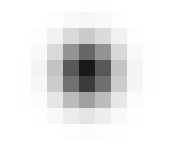
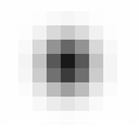
- Brush Visualization should tell user what its color, falloff and size is
- Brush should always be visible regardless of color
- Draw 1x (actual size) and 4x (four times larger in x and y) versions of
the brush
- Make the larger version discretized – that is it should be a
choppy/chunky/pixel replicated version of the actual brush (think xmag,
snoop)
- Make sure this visualization will help you explain to user, TAs,
Professor and yourself how the brush weights affect drawing
|
|
22
|
- Correctness (40%)
- Don’t crash
- Implement all required features
- (Read the directions like a lawyer)
- Efficiency (20 %)
- No noticeable lag while using your application
- User Interface (20%)
- Programming Style (20%)
- Copying code (Don’t do it)
- Submitting with ‘/usr/class/cs248/bin/submit’
|
|
23
|
|
|
24
|
- Ask now
- Come to Office Hours
- Newsgroup: su.clss.cs248
- Email: cs248-aut0506-tas@lists.stanford.edu
- Remember: Computer Graphics is fun - if you are not having fun ask TAs
for help
|

 Notes
Notes