Using import-export
utility
Import-export utiltiy
helps in converting project data from different applications to XML and vice
versa.
The operation supported
are:
- Importing 4D
data
- Importing simvision
data
- Importing cost
data: from excel
- Importing relationships
between cost items and building components (from XML file)
- Saving project
data as XML (as local file or to database)
- Loading a XML
file from database
- Saving loaded
data as VFE (4D)
- Saving cost
and component relations (as XML)
- Add notes, specifications,
name, description, background color to loaded project information
- Add the loaded
scenario to a project
- Set requirements
for a project
Converting project
data to XML
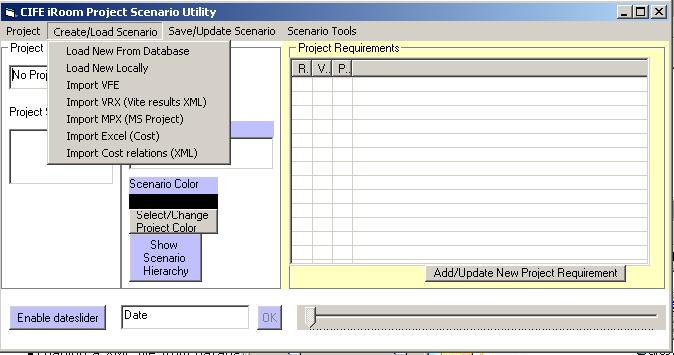
- Load schedule
and component data from 4D using the "Import VFE" option
- Load schedule
and resource data from Simvision using the "Import MPX" and
"Import VRX".
- MPX file
is obtained by using the export MPX option in Simvision
- To get a
VRX file run the Simvision simulation for a case and then save the results
as VRX.
- Import cost
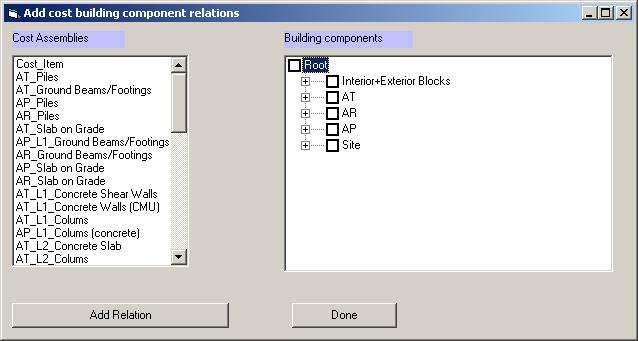
information using "Import Excel". This brings up a dialog
box in which you can manually make any relationships between cost items and
components
- Import existing
component and cost relations if you saved them from a previous model using
the option "Import cost relations"
- You can change
scenario color by clicking on "Select/Change Project color"
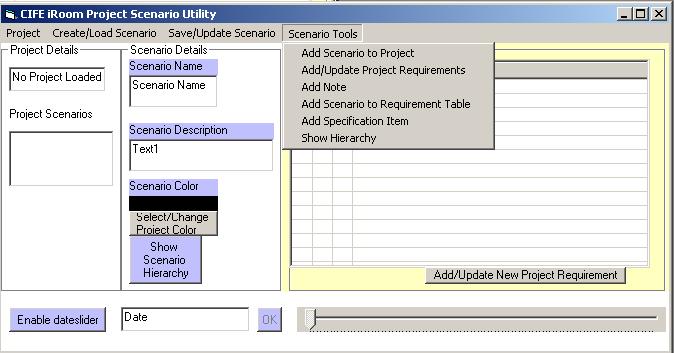
- Specifications
can be added using "Add specification menu item". Relationship
between the specification and activites-components can be made by selecting
the appropriate nodes

- Note can be
added using "Add note" option
- Name can be
given to a scenario by typing in "Scenario name" text box
- Description
can also be given to a scenario by filling in "Scenario Description"
text box
- Select the "Save
as XML" option to save the loaded data. The data can be saved as
a local XML file or directly to the database (However loading to databse option
option may take a long time if the data is large)
Instead of using
VFE as base data you could also import an existing project XML file and add
simvision, cost, spec data to it. To import a XML file stored locally use "Load
new locally" option. To load XML from database use "Load new
from database" option.
Specifing database
and other locations
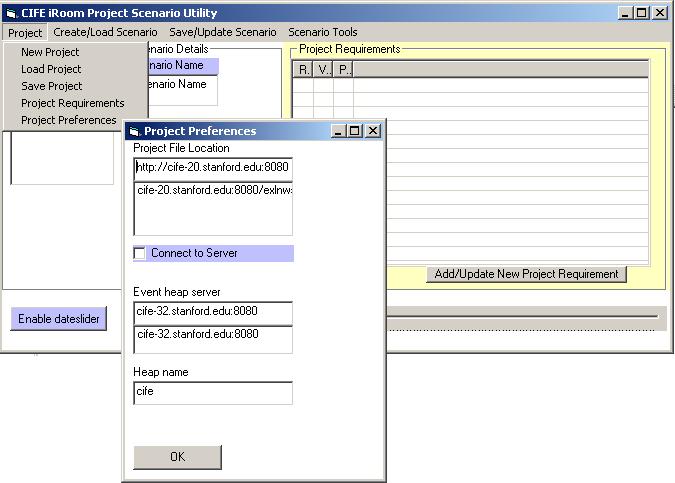
The location of
the database, event heap server and heap name can be specified using the "Project
preferences" option
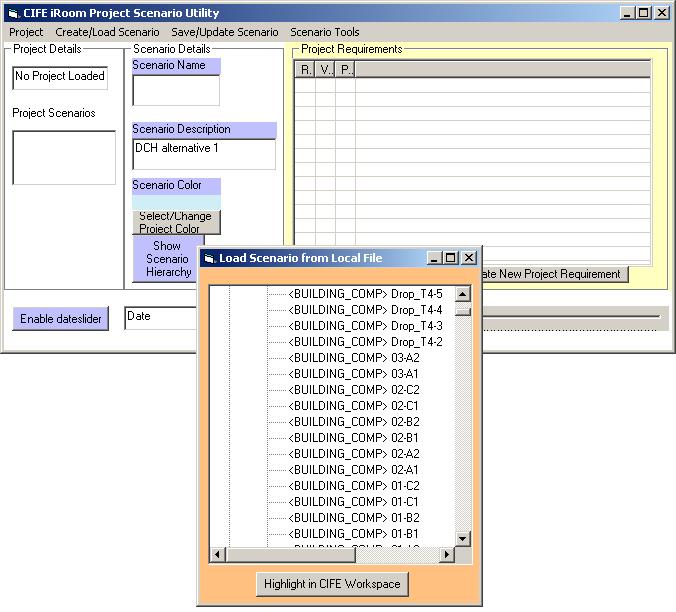
The import-export
application provides the ability to send event to the workspace. You can send
date events using the dateslider or by clicking on an element in the scenario
hierarchy and selecting "highlight in workspace" you can send
construction activity name command, building component name command or view
command depending on the element type selected (project hierarchy can be viewed
by clickin the "show scenario hierarchy" button)
The project requirements,
adding scenarios to project, defining project requirement options are still
under developement.